You can view your transaction history, upcoming payments and change your payout bank account details on the Stripe Express Dashboard.
By default, payments will be sent to your connected bank account automatically after a 7-day confirmation period following the completion of an opportunity.
Logging in to Stripe
- Navigate to the login page here: https://dashboard.stripe.com/login and enter the email which you used when connecting Stripe to your Candou account (likely to be the same email which you used to sign up to Candou).
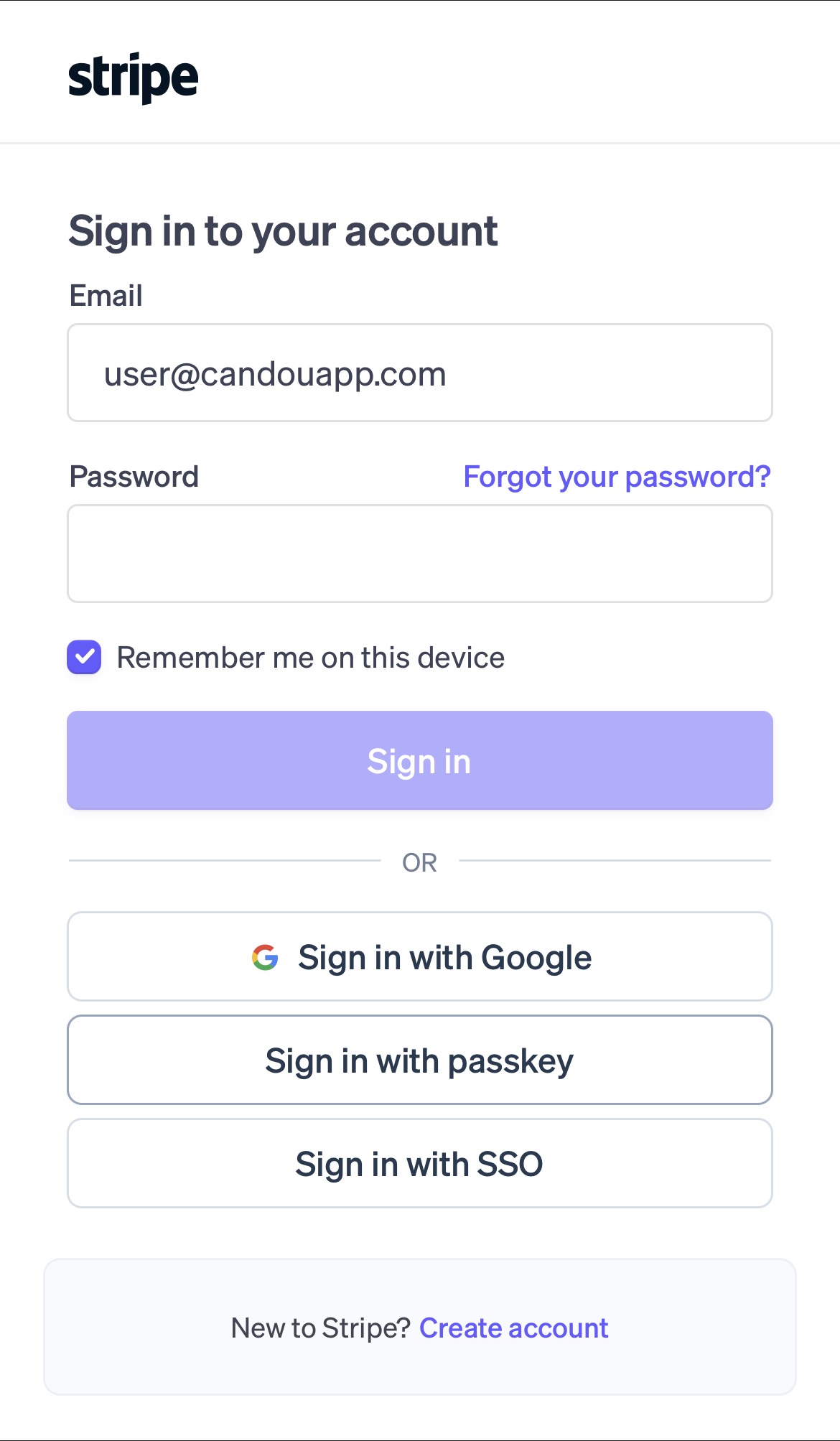
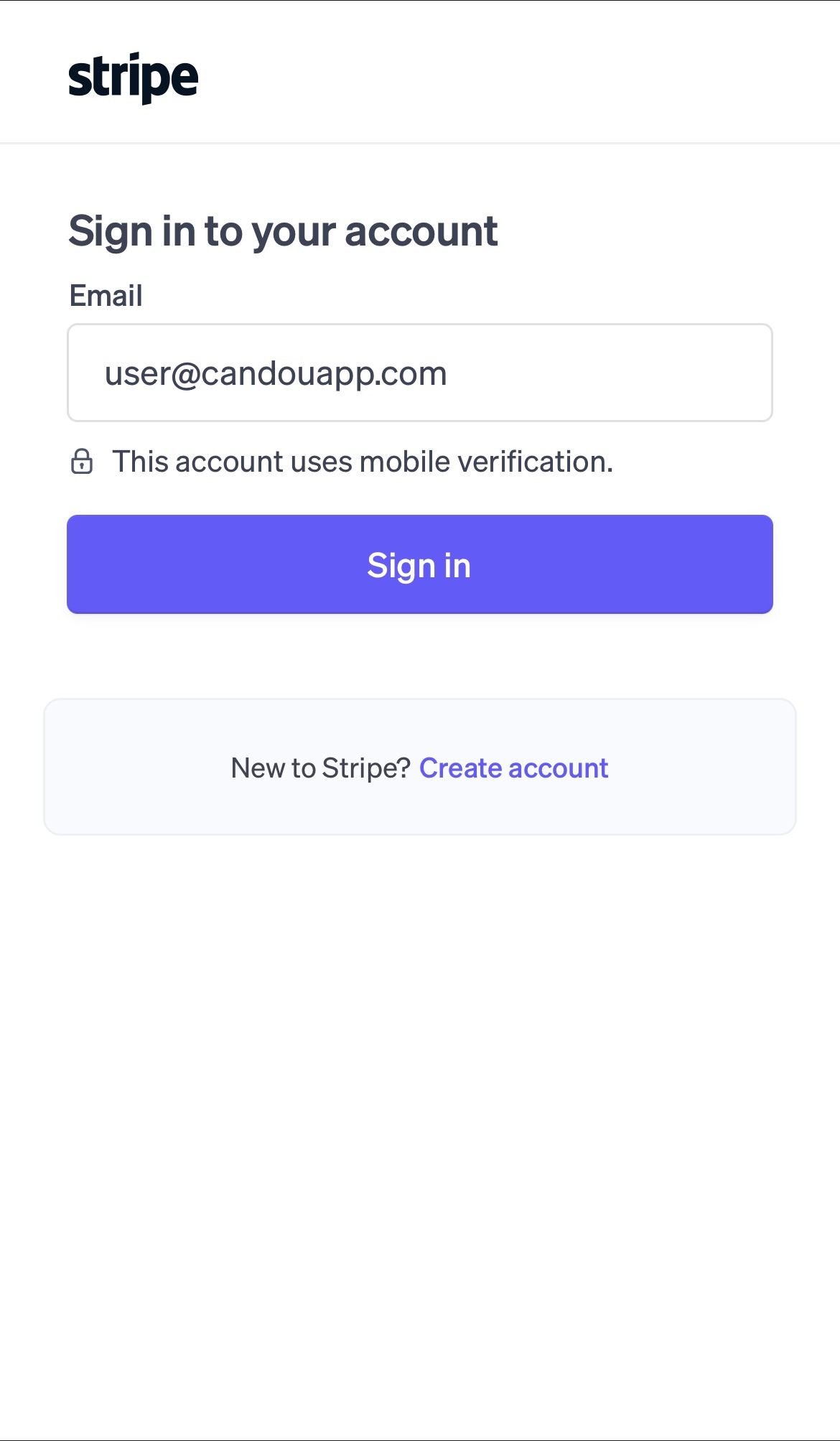
- Stripe will then prompt you to use mobile verification to sign in to your account. Select 'Sign in' and a code will be sent to your mobile number.
- Enter the code you received in a text message to sign in.
If the text containing the code doesn't arrive or you cannot receive text messages, select 'Sign in another way' and select the option to have a sign in code sent to your email instead.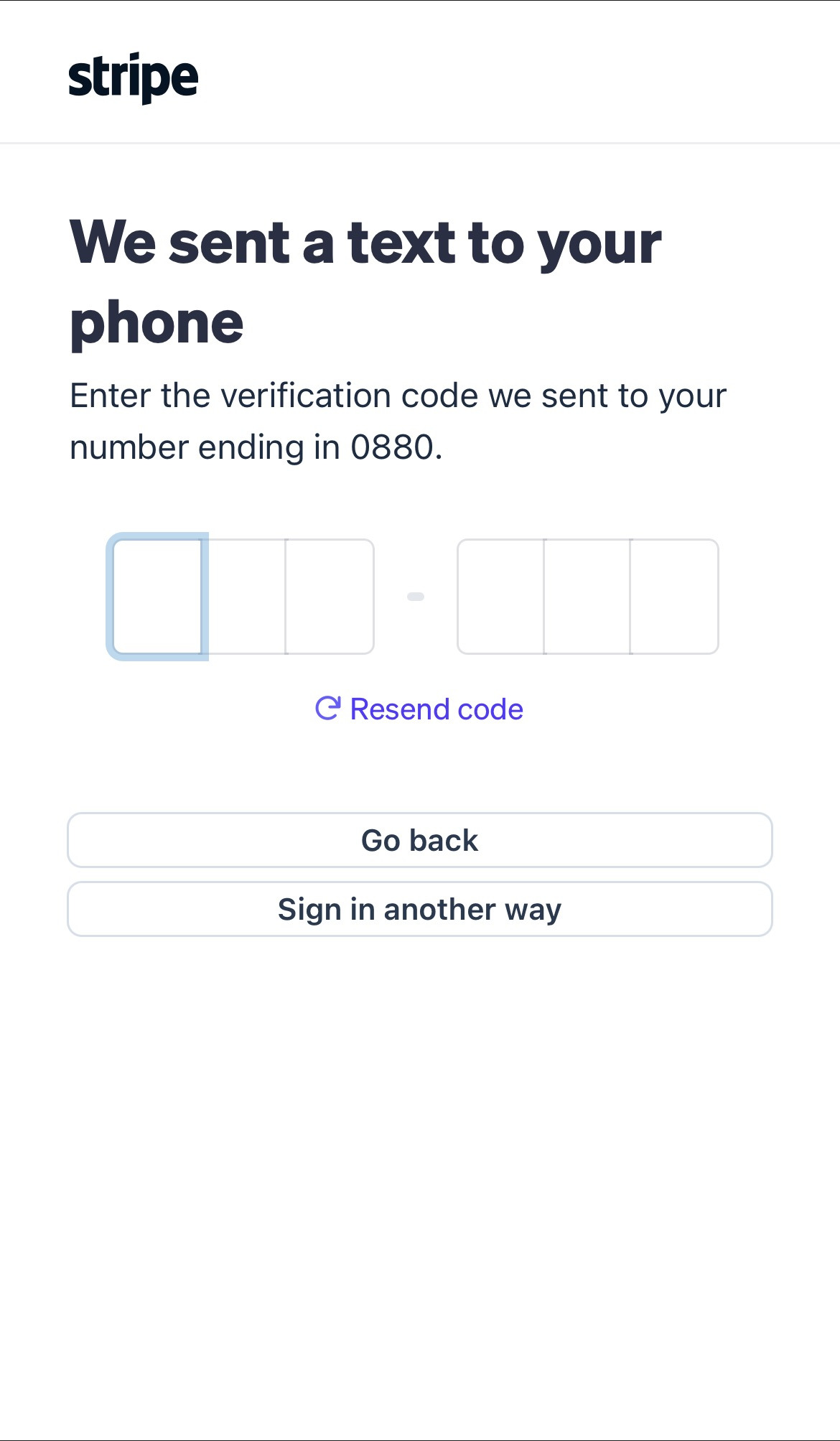
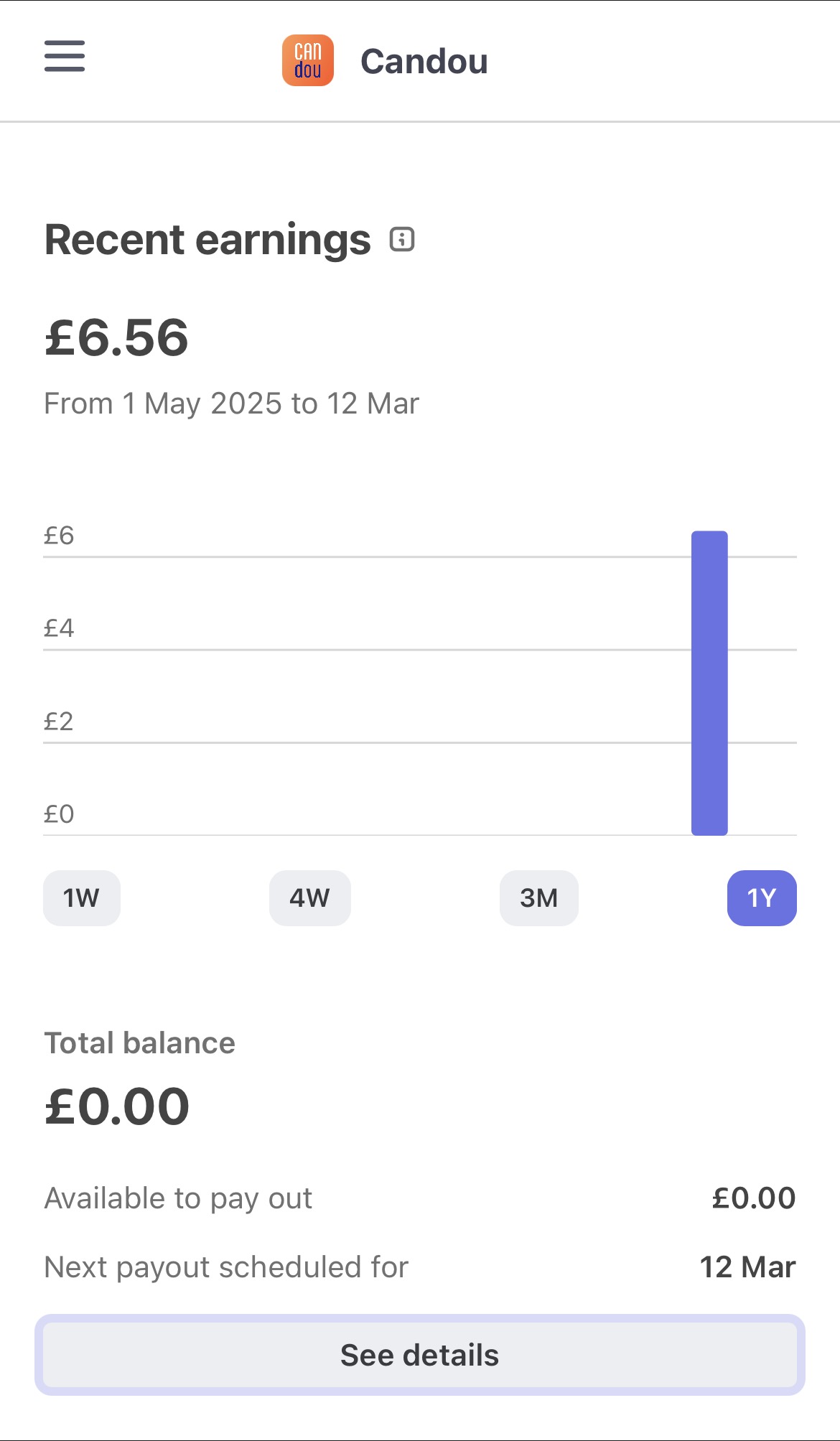
- You can now view your Stripe Express Dashboard. This page will give you information about your earnings history as well as your payout schedule and amount.
Receiving Payouts
You will receive payment for an opportunity automatically after a 7-day confirmation period following its completion. The payment will be sent to your bank account which you provided during the initial Stripe set-up process.
Select the 'See details' option in the menu shown above to view your current account balance and the total of any pending payouts which may still be processing.
Updating your Bank Account Details
You can view your current bank account details and add new bank accounts from this page.
- Select 'See details' in the menu shown above.
- Select 'Update payout settings' to view your current bank account details.
- Select 'Add bank account' and follow the instructions to verify your identity.
- Add your new bank account details to your Stripe account.
- Set your new bank account as the destination for future payouts.
Viewing Transaction History
To view your account's transaction history,
- Select the menu icon ( ≡ ) in the top left of the screen.
- Select 'Balance' to view your balance summary page.
- Scroll down to 'Transactions' to view a history of payments.
- Select 'All' to view all transaction history or 'Payouts' to view payments sent to your bank account
Additionally, you can export your transaction history for a particular period for your own financial records by selecting 'Export' and entering the appropriate date range and filters.
Was this article helpful?
That’s Great!
Thank you for your feedback
Sorry! We couldn't be helpful
Thank you for your feedback
Feedback sent
We appreciate your effort and will try to fix the article